> ## Documentation Index
> Fetch the complete documentation index at: https://docs.sequence.xyz/llms.txt
> Use this file to discover all available pages before exploring further.
# OIDC - Social Sign In
Our SDK supports Social Sign In using [OIDC](https://openid.net/developers/how-connect-works/) with the [implicit flow](https://auth0.com/docs/authenticate/login/oidc-conformant-authentication/oidc-adoption-implicit-flow).
Currently supported OIDC providers include:
* Google -> [Builder Setup](/solutions/builder/embedded-wallet/google-configuration)
* Apple -> [Builder Setup](/solutions/builder/embedded-wallet/apple-configuration)
Stop! Have you configured your OIDC providers in the Builder using the instructions linked above? Have you added your client id(s) to the `SequenceConfig` scriptable object in your Resources folder?
Once the user successfully signs in, an idToken is returned via deep link to the application.
In order to enable deep linking, we must register a custom URL scheme for our application. There are some platform specific requirements to set this up.
### Editor
For social sign in to work in the editor, you will need to deploy a simple server on your local machine. We provide a sample implementation [here](https://gist.github.com/BellringerQuinn/d012cd29eb9e756fe3555d4d03b001b2).
To deploy this sample server, please perform the following.
1. Download and install Go: [https://go.dev/dl/](https://go.dev/dl/)
2. Open a terminal/command prompt and verify your installation by typing
```
go version
```
3. Create a directory for your go project and a main.go file
```
mkdir myUnityServer
cd myUnityServer
touch main.go
```
4. Copy + paste the [gist](https://gist.github.com/BellringerQuinn/d012cd29eb9e756fe3555d4d03b001b2) into the main.go
5. Initialize the project by creating a go module
```
go mod init myUnityServer
```
6. Run the server
```
go run main.go
```
7. You should see `Server listening on port 8080` printed to your terminal/command prompt
If you choose to deploy the server to somewhere else (a different port, a public server, etc.), you'll want to change the `OpenIdAuthenticator.RedirectUrl` in your code before initiating the sign in process
```csharp theme={null}
OpenIdAuthenticator.InjectRedirectUrl("the url for your deployed server");
```
Note: you'll want to use a web client for your social sign in provider with `http://localhost:8080/` (or your server url) whitelisted as a redirect url under `Standalone Platforms` in `SequenceConfig`
### iOS
#### Sign in with Apple
This SDK supports native Sign in with Apple via the popular [`apple-signin-unity` package](https://github.com/lupidan/apple-signin-unity). This [requires the `Sign in with Apple` capability in XCode](https://developer.apple.com/documentation/xcode/configuring-sign-in-with-apple#Add-the-Sign-in-with-Apple-capability-to-your-app) in order to function. Provided you have [imported the `Setup` scripts via Package Manager > Samples](https://docs.sequence.xyz/sdk/unity/installation#package-manager---recommended) and/or have `SignInWithApplePostprocessor.cs` under an `Editor` subfolder, this capability will be added to your XCode builds automatically.
Please be aware that this capability is not supported by `Personal Teams`.
#### Other Social Platforms
All other social platforms are supported by default, just be sure to add your client IDs in `SequenceConfig`.
### MacOS
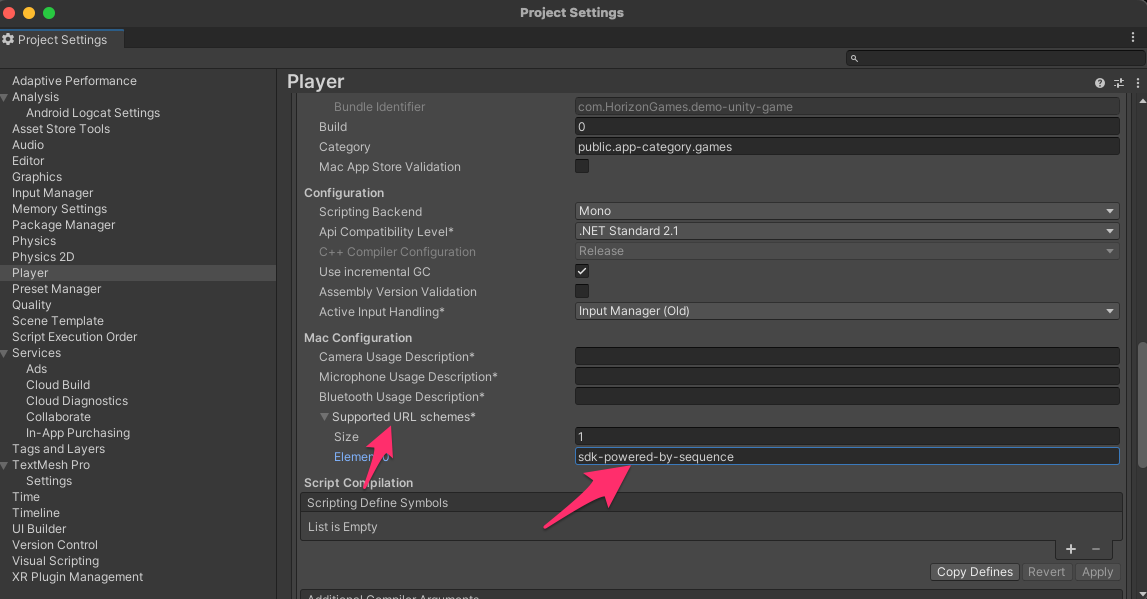
1. Open the Windows/Mac/Linux Player Settings window (menu: Edit > Project Settings > Player Settings, then select Windows/Mac/Linux).
2. Select `Other Settings`, then scroll down to `Mac Configuration`.
3. Expand the `Supported URL schemes` section, and add 1 to the size.
4. In the new `Element N` field, enter the URL scheme you've configured in `SequenceConfig`.
 ### PC
No additional steps required.
When configuring your social sign in *web client* credentials with Google (for example) for desktop platforms (and Android), you'll want to whitelist [https://api.sequence.app/oauth/callback](https://api.sequence.app/oauth/callback) as "Authorized redirect URIs"
### Android
1. In the Project window, browse to `Assets > Plugins > Android`.
a) Note: in Unity versions 2021.2 and up this path doesn't exist by default. Please navigate to `Edit > Project Settings > Player` and under the Android Publishing Settings, enable `Custom Main Manifest` in the Build section. See [https://docs.unity3d.com/Manual/deep-linking-android.html](https://docs.unity3d.com/Manual/deep-linking-android.html) for more info.
2. If it doesn't already exist, create a new file and name it `AndroidManifest.xml`.
3. Paste the following XML into the file, or, if you already have one, add the new keys from this XML to it.
4. Make sure to replace 'sdk-powered-by-sequence' with the Url Scheme you set in `SequenceConfig`
```xml theme={null}
```
b) Note: Unity 2022 versions prior to `2022.3.7f1` and 2023 versions prior to `2023.1.7f1`, `2023.2.0b3`, or `2023.3.0a1` contain a bug with Android deep-linking. Please use this XML instead.
```xml theme={null}
```
i.e. add `` after your first `intent-filter`. Please see [https://forum.unity.com/threads/deep-linking-in-unity-2022-the-app-is-restarted.1447300/](https://forum.unity.com/threads/deep-linking-in-unity-2022-the-app-is-restarted.1447300/) for more info.
The URL Scheme in your AndroidManifest and SequenceConfig should be all lowercase.
If you're working with Unity 6, you may need to replace `UnityPlayerActivity` in your AndroidManifest with `UnityPlayerGameActivity`! You may also need to replace your `android:theme`; we've found "@style/BaseUnityGameActivityTheme" works well in our testing.
### Web
Social sign in on Web platforms uses React via the [WebGLTemplate](https://docs.unity3d.com/Manual/webgl-templates.html) found under `WebGLTemplates/SequenceReact`. This has been validated on WebGL and WebGPU. To learn how to enable WebGPU in Unity, please see [this forum post](https://forum.unity.com/threads/early-access-to-the-new-webgpu-backend-in-unity-2023-3.1516621/).
Please note that Google is the only OIDC provider currently supported on Web platforms by our default `SequenceReact` WebGLTemplate; however, you are welcome to expand upon it to add support for the other OIDC providers supported by our API.
#### One-time setup
Drag this `WebGLTemplates` folder under `Assets` (or just drag the `SequenceReact` template into your existing `WebGLTemplates` folder is you already have one) such that you have `Assets/WebGLTemplates/SequenceReact`.
It is very important that your `WebGLTemplates` are at `Assets/WebGLTemplates`. Much like the `Plugins` folder, if they aren't in this exact location, Unity will not pick them up!
Once you've added the `SequenceReact` template, you'll want to restart the editor so that Unity picks up your newly added template.
From here, you can select the template under `Project Settings > Player Settings > Resolution and Presentation`.
#### Building
After the one time setup, when you build your Unity project on Web platforms it will be built as part of a React project.
1. Open up a command line at the root of your new build
2. [Install pnpm](https://pnpm.io/installation) if you don't already have it
3. `pnpm install` to install dependancies
4. `pnpm dev` to run the project on your localhost (defaulting to port 4444 - configurable in `SequenceReact/package.json`)
5. Open [http://localhost:4444](http://localhost:4444)
When building your WebGL app, if you are using any `Compression Format` (e.g. Gzip or Brotli), it is recommended to enable `Decompression Fallback` under `Player Settings > Publishing Settings`. Learn more about WebGL deployment here: [https://docs.unity3d.com/Manual/webgl-deploying.html](https://docs.unity3d.com/Manual/webgl-deploying.html)
When configuring your social sign in credentials with Google (for example), you'll want to whitelist [http://localhost:4444](http://localhost:4444) and your game's eventual hosted URL as "Authorized Javascript origins"
Don't forget to subscribe to the `SequenceWallet.OnWalletCreated` event to receive your newly created wallet!
### PC
No additional steps required.
When configuring your social sign in *web client* credentials with Google (for example) for desktop platforms (and Android), you'll want to whitelist [https://api.sequence.app/oauth/callback](https://api.sequence.app/oauth/callback) as "Authorized redirect URIs"
### Android
1. In the Project window, browse to `Assets > Plugins > Android`.
a) Note: in Unity versions 2021.2 and up this path doesn't exist by default. Please navigate to `Edit > Project Settings > Player` and under the Android Publishing Settings, enable `Custom Main Manifest` in the Build section. See [https://docs.unity3d.com/Manual/deep-linking-android.html](https://docs.unity3d.com/Manual/deep-linking-android.html) for more info.
2. If it doesn't already exist, create a new file and name it `AndroidManifest.xml`.
3. Paste the following XML into the file, or, if you already have one, add the new keys from this XML to it.
4. Make sure to replace 'sdk-powered-by-sequence' with the Url Scheme you set in `SequenceConfig`
```xml theme={null}
```
b) Note: Unity 2022 versions prior to `2022.3.7f1` and 2023 versions prior to `2023.1.7f1`, `2023.2.0b3`, or `2023.3.0a1` contain a bug with Android deep-linking. Please use this XML instead.
```xml theme={null}
```
i.e. add `` after your first `intent-filter`. Please see [https://forum.unity.com/threads/deep-linking-in-unity-2022-the-app-is-restarted.1447300/](https://forum.unity.com/threads/deep-linking-in-unity-2022-the-app-is-restarted.1447300/) for more info.
The URL Scheme in your AndroidManifest and SequenceConfig should be all lowercase.
If you're working with Unity 6, you may need to replace `UnityPlayerActivity` in your AndroidManifest with `UnityPlayerGameActivity`! You may also need to replace your `android:theme`; we've found "@style/BaseUnityGameActivityTheme" works well in our testing.
### Web
Social sign in on Web platforms uses React via the [WebGLTemplate](https://docs.unity3d.com/Manual/webgl-templates.html) found under `WebGLTemplates/SequenceReact`. This has been validated on WebGL and WebGPU. To learn how to enable WebGPU in Unity, please see [this forum post](https://forum.unity.com/threads/early-access-to-the-new-webgpu-backend-in-unity-2023-3.1516621/).
Please note that Google is the only OIDC provider currently supported on Web platforms by our default `SequenceReact` WebGLTemplate; however, you are welcome to expand upon it to add support for the other OIDC providers supported by our API.
#### One-time setup
Drag this `WebGLTemplates` folder under `Assets` (or just drag the `SequenceReact` template into your existing `WebGLTemplates` folder is you already have one) such that you have `Assets/WebGLTemplates/SequenceReact`.
It is very important that your `WebGLTemplates` are at `Assets/WebGLTemplates`. Much like the `Plugins` folder, if they aren't in this exact location, Unity will not pick them up!
Once you've added the `SequenceReact` template, you'll want to restart the editor so that Unity picks up your newly added template.
From here, you can select the template under `Project Settings > Player Settings > Resolution and Presentation`.
#### Building
After the one time setup, when you build your Unity project on Web platforms it will be built as part of a React project.
1. Open up a command line at the root of your new build
2. [Install pnpm](https://pnpm.io/installation) if you don't already have it
3. `pnpm install` to install dependancies
4. `pnpm dev` to run the project on your localhost (defaulting to port 4444 - configurable in `SequenceReact/package.json`)
5. Open [http://localhost:4444](http://localhost:4444)
When building your WebGL app, if you are using any `Compression Format` (e.g. Gzip or Brotli), it is recommended to enable `Decompression Fallback` under `Player Settings > Publishing Settings`. Learn more about WebGL deployment here: [https://docs.unity3d.com/Manual/webgl-deploying.html](https://docs.unity3d.com/Manual/webgl-deploying.html)
When configuring your social sign in credentials with Google (for example), you'll want to whitelist [http://localhost:4444](http://localhost:4444) and your game's eventual hosted URL as "Authorized Javascript origins"
Don't forget to subscribe to the `SequenceWallet.OnWalletCreated` event to receive your newly created wallet!