> ## Documentation Index
> Fetch the complete documentation index at: https://docs.sequence.xyz/llms.txt
> Use this file to discover all available pages before exploring further.
# Marketplace Quickstart
> Quickstart Guide on how to build your own In-Game Marketplace using Sequence's Unreal SDK.
The examples below apply to versions 2.x.x.
If you’re using version 3, use the SequenceEmbeddedWalletBP (Blueprints) and SequenceEmbeddedWallet (C++) classes instead.
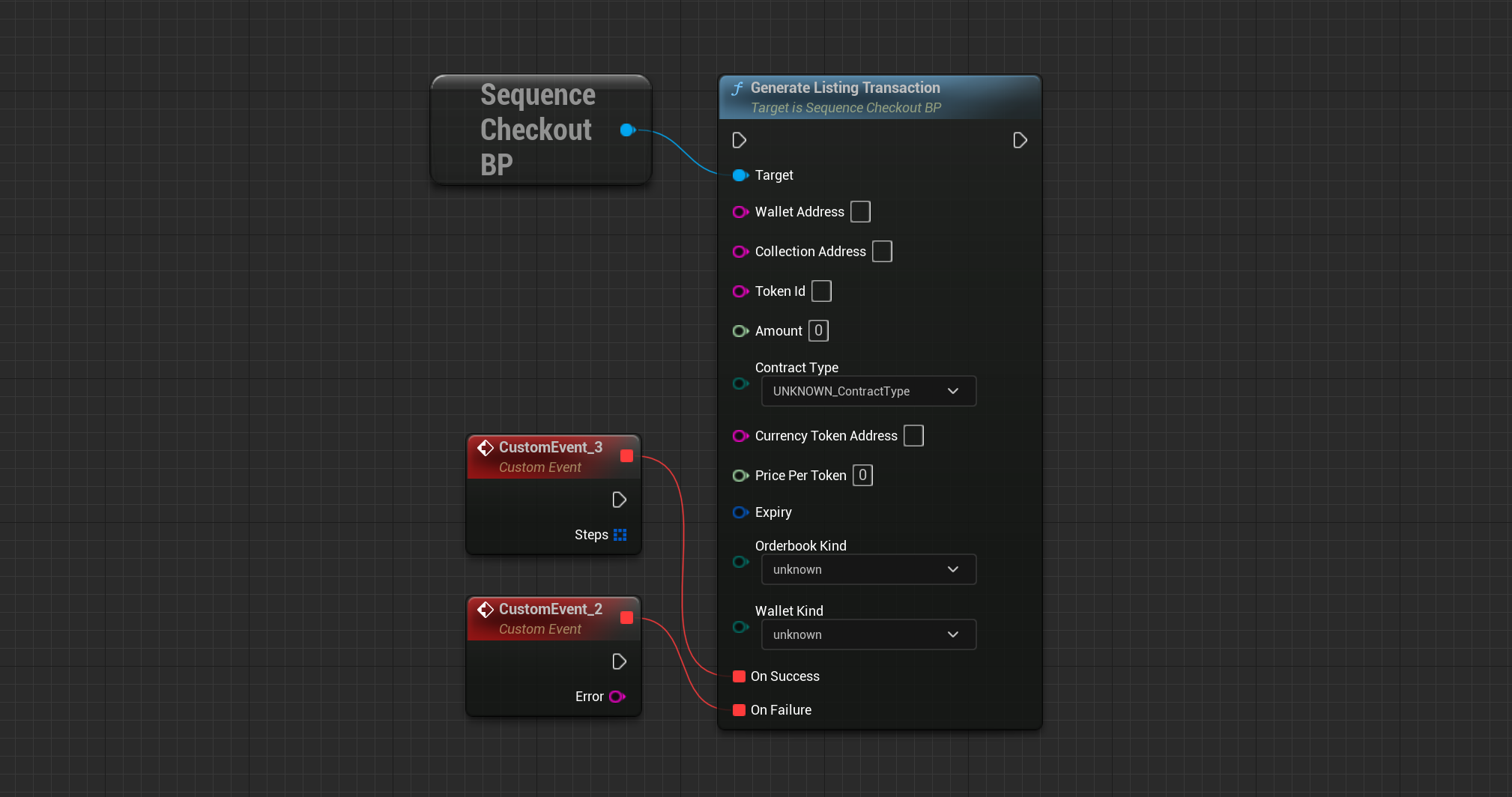
Let's start by listing one of your items. A `Listing` is the state of an item on your Marketplace that
other players are allowed to purchase. The `Wallet Address` should be your client's address and it needs to
own the specified amount of tokens.
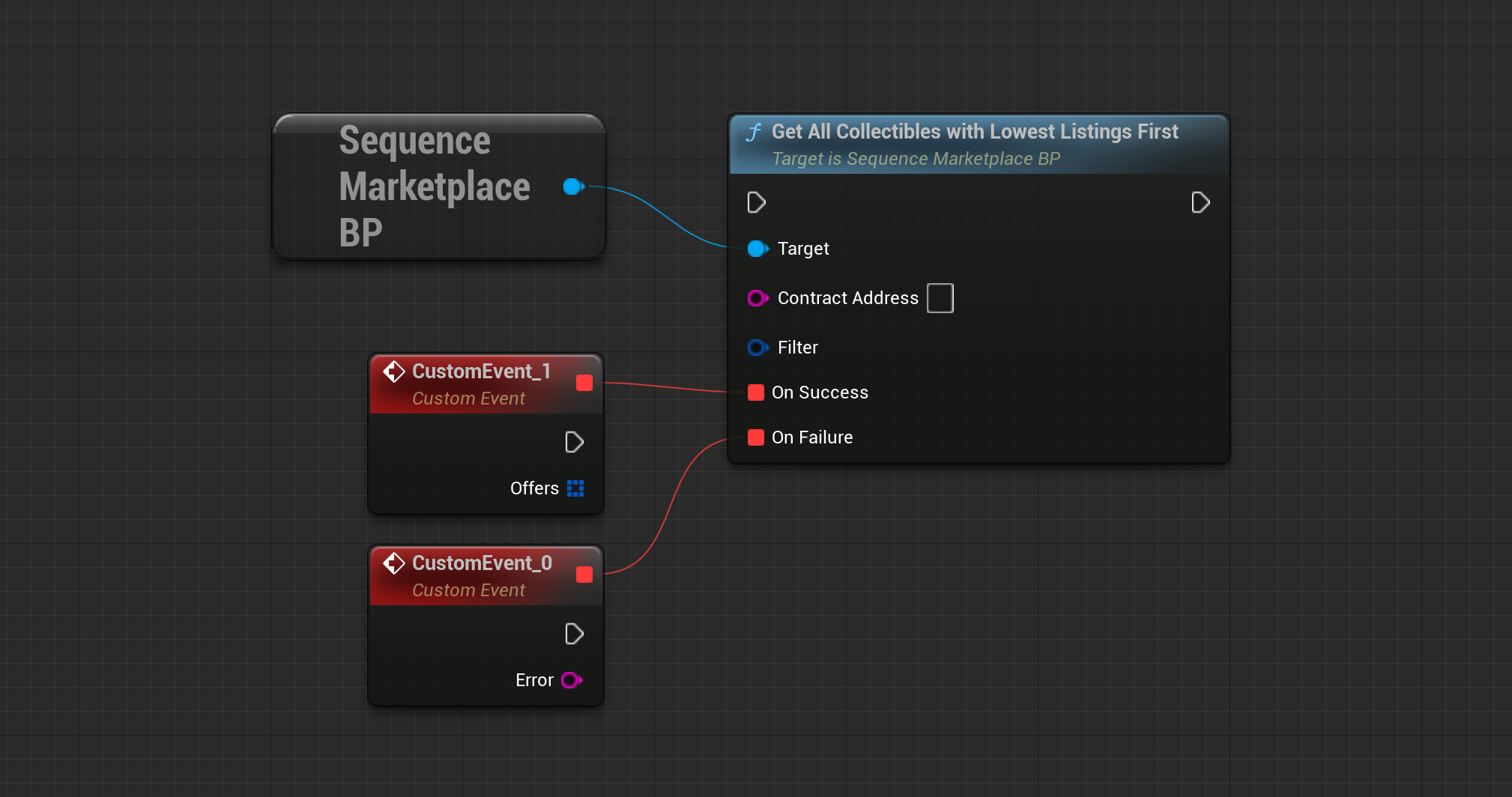
 Now that we have our first item listed, let's query our listings, starting with the lowest priced listing first.
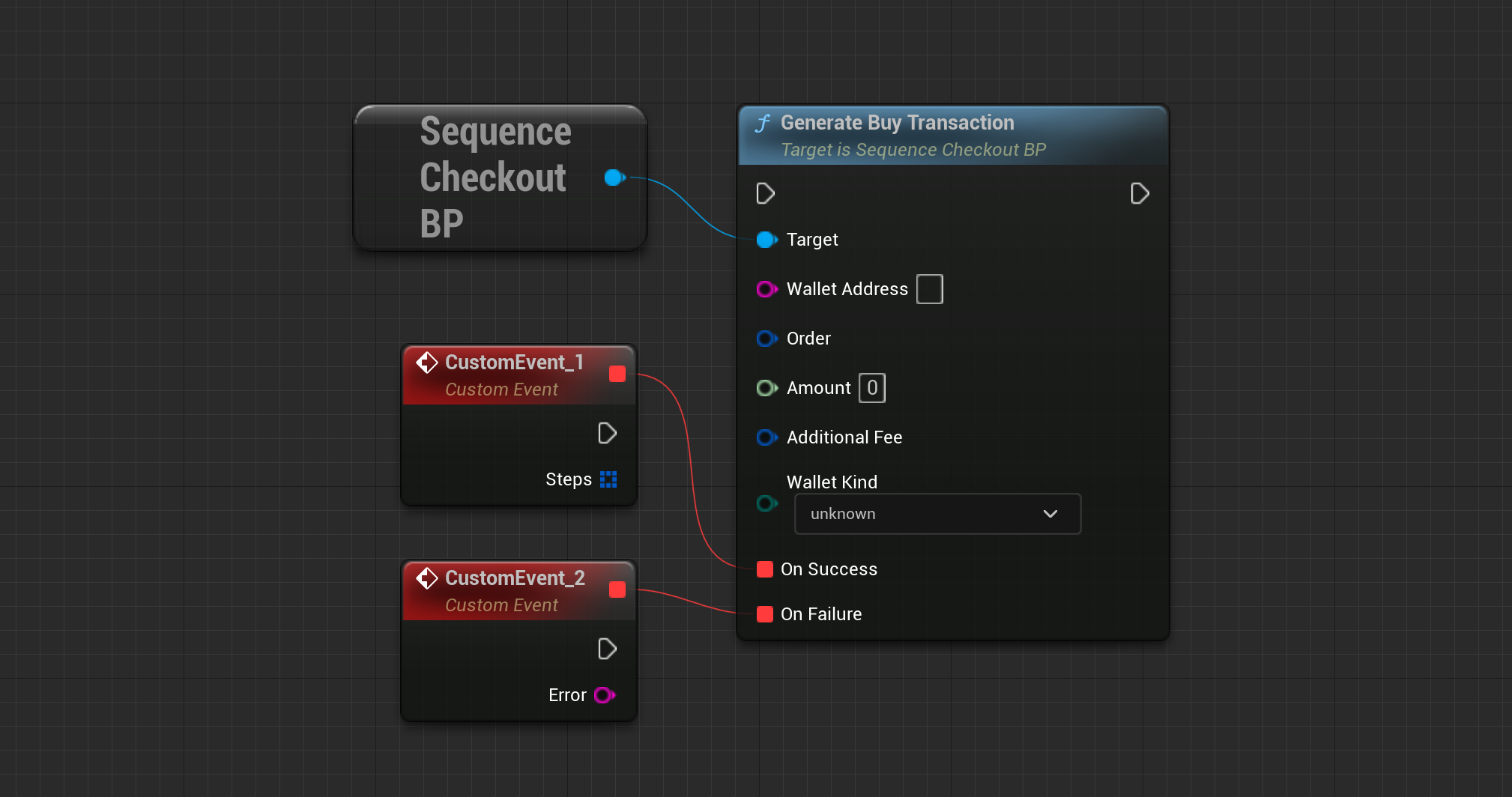
 Take one of the returned orders from the `OnSuccess` event node and generate a transaction to purchase the item.
This will only give you the transaction data. Follow the next step on how to send the transaction.
Take one of the returned orders from the `OnSuccess` event node and generate a transaction to purchase the item.
This will only give you the transaction data. Follow the next step on how to send the transaction.
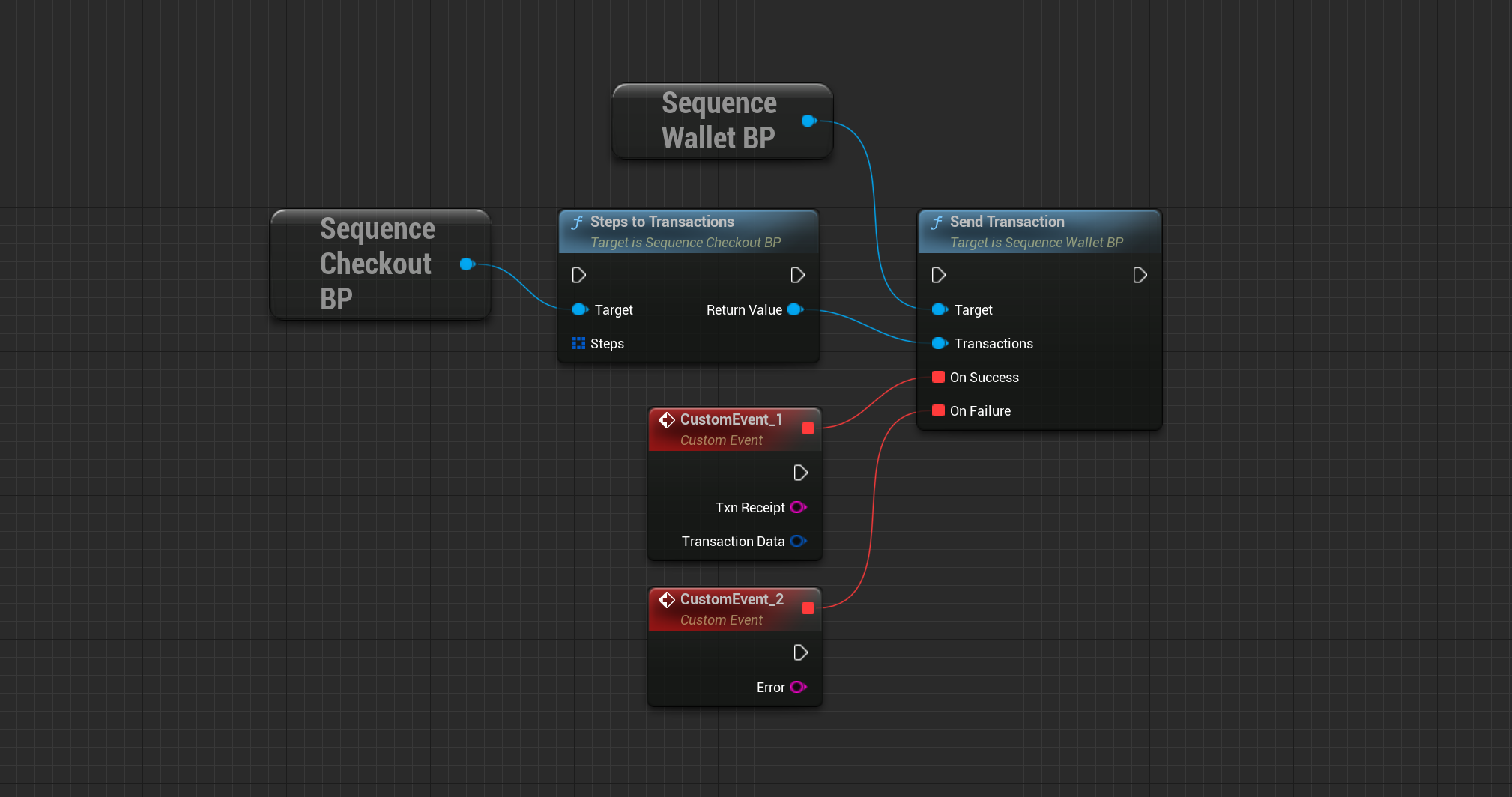
 When generating a transaction with the `SequenceCheckout` module, you receive an array of `Steps` which you need
to convert to a Transactions object. This is what you need to use when sending the transaction.
When generating a transaction with the `SequenceCheckout` module, you receive an array of `Steps` which you need
to convert to a Transactions object. This is what you need to use when sending the transaction.
 Now that you know how to query- and buy listings, you can take a further look into [creating offers](/sdk/unreal/monetization/checkout#generate-offer-transaction). An `Offer` is
the state of an item which other players can sell to you. Additionally, you also have the ability to [cancel any listing or
offer.](/sdk/unreal/monetization/checkout#generate-cancel-transaction)
Now that you know how to query- and buy listings, you can take a further look into [creating offers](/sdk/unreal/monetization/checkout#generate-offer-transaction). An `Offer` is
the state of an item which other players can sell to you. Additionally, you also have the ability to [cancel any listing or
offer.](/sdk/unreal/monetization/checkout#generate-cancel-transaction)