

1
Configure your Unreal Project
Create a project on Sequence Builder and download your config file as shown below.Next, create a Make sure your config file includes the required fields:
SequenceConfig.ini file and place it inside your Unreal projects Config directory. Paste the following the content into the SequenceConfig.init file:- DefaultChain: The chain id you want to use as a default. You can change the chain id at runtime later as well.
- ProjectAccessKey: Your Project Access Key from your Builder project.
- WalletAppUrl: The URL of the Ecosystem you want to connect to. If you are unsure, use
https://v3.sequence-dev.appas a default.
- UrlScheme: You have to configure this for your Android Manifest and Xcode project as well.
2
Create your own Sign-In flow
You can optionally get the configured auth providers from the Ecosystem directly and check if your target auth method, like Email or Google, is supported.
Next, let’s call an auth method like Google. This will redirect the user to an external browser to authenticate against the Ecosystem.You have two options to authenticate. You either create an implicit- or explicit session. You create an implicit session by passing no node to the 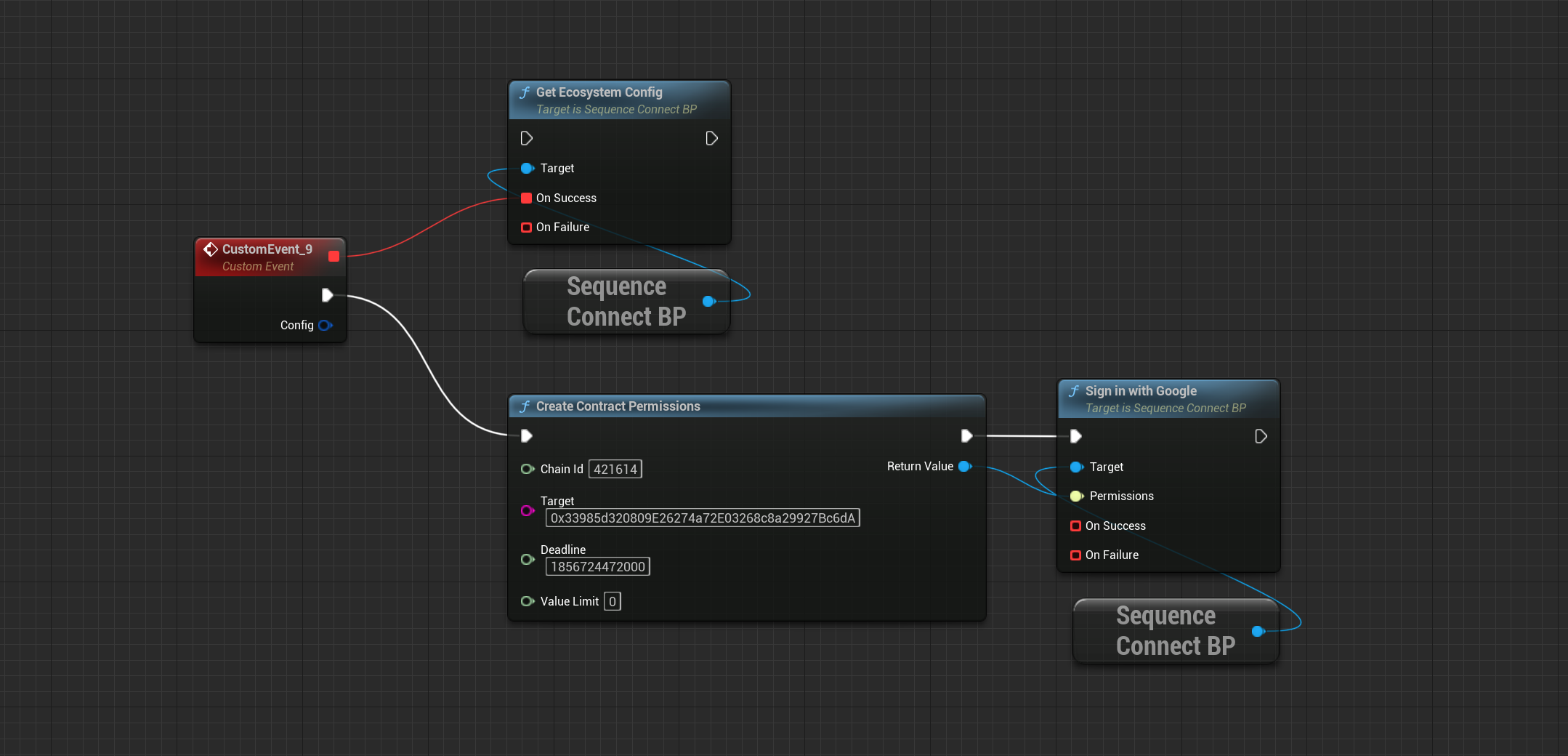
Permissions field.
Implicit session will only allow transactions to contracts from the Ecosystem. For this demo, let’s instead create an explicit session for a specific contract.- Blueprint
- C++
3
Try our Built-In Demo (optional)
The Unreal SDK comes with a set of boilerplate widgets to get you started.
Make sure to enable 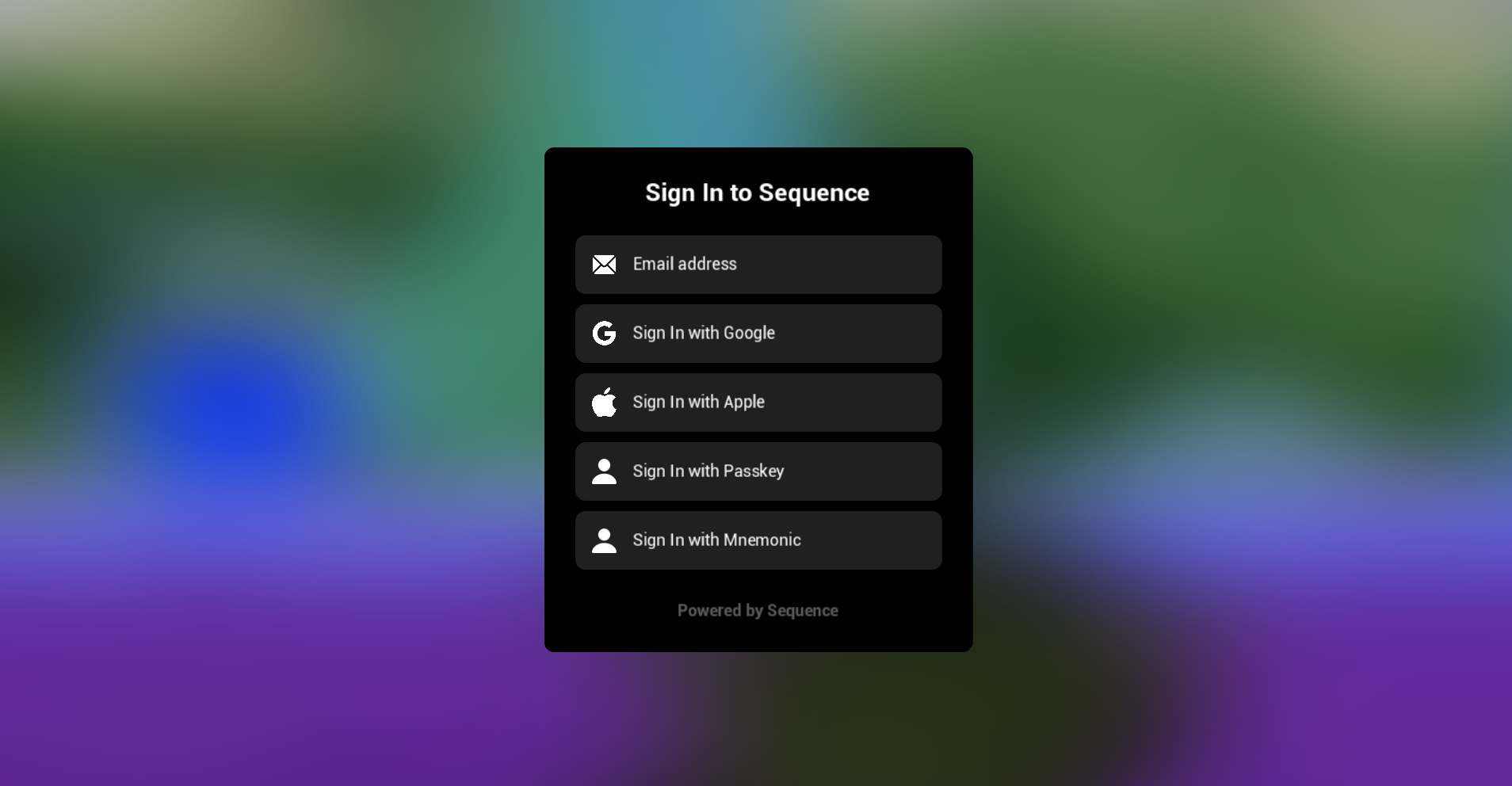
Enable Plugin Content in your Content Browser’s settings.